Showing posts with label ubuntu. Show all posts

May 4, 2009

My Ubuntu Jaunty 9.04 Bootchart

My machine: Lenovo T61 T9300 2Gb 100Gb nvidia quadro 140m
ext4 filesystem
record: 14 sec

Really amazing isn't it?

FYI, same machine with ubuntu 9.04 on ext3 filesystem has a boot time of 27 sec.

PS: install bootchart by:

sudo apt-get install bootchart

GMail Notifier for Ubuntu Jaunty 9.04 notification


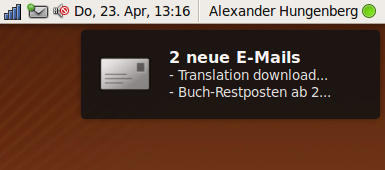
The growl-like new notification style in Ubuntu Jaunty 9.04 is really fancy in my opinion. Today I just discovered this tiny application Gmail Notifier that can fully integrate with the new notification (checkgmail can't...yet).

However, compared to other notification application like checkgmail, there is limited functions in this gmail notifier. So it's your choice, better features (like monitoring a certain label) or fancy interface.

Check it out...
https://launchpad.net/gm-notify

Downloads
https://launchpad.net/gm-notify/+download

Mar 30, 2009

Mail notification for Mutt (and Gmail, Thunderbird, and etc)

I've introduced basic configuration for Mutt in recent posts. But we still have a problem: how do I get notified when I have new mail?

Gmail users might also have similar problem. We certainly don't want to login to Gmail every 2 minutes. Of course gtalk can solve this problem. But what if one has several Gmail accounts, or even have Gmail AND Yahoo accounts? (If you don't use Mutt, you can directly go to the Mail Notification part)

First, we need to let fetchmail to download new mails every, say, 5 minutes. This could be done by setting up a crontab job. Edit the crontab list in your terminal:

crontab -e


Then add the following line.

*/5 * * * * fetchmail -v >/dev/null


"*/5" means fetchmail will run every 5 minutes, and the part after ">" means there won't be any output.

OK, now fetchmail will download your emails automatically.

Mail Notification

The extra software you need to install is Mail-Notification.

sudo apt-get install mail-notification


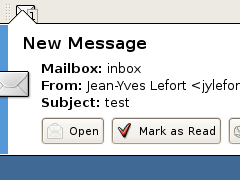
You can run it from System -> Preference -> Mail Notification. In the Mailbox list, you can add your Mutt's mbox type mailboxes. Remember to check "Auto start Mail Notification upon session opening". Now once there is new mail in your mailboxes, a notification will appear in the status area.


Note that "Mail Notification can monitor multiple mailboxes concurrently, and supports Evolution, Gmail, IMAP, Maildir, mbox, MH, Mozilla products (Mozilla, SeaMonkey, Thunderbird, …), POP3, Sylpheed, Windows Live Hotmail and Yahoo! Mail mailboxes." (Description and screenshot are from http://www.nongnu.org/mailnotify/)

So, if you are a Gmail user, you can also use Mail Notification to check if there's new mail in the server. This is really a handy software.


Mar 28, 2009

Ubuntu guitar software for guitarist

I play a little guitar. Yesterday I came across a problem: how do I play gp5, gp4 or ptb in Ubuntu? In Windows, we have Guitar Pro, which is not free, but I think it's an easy job to get a serial number...But how about in Ubuntu?

The answer is Tuxguitar.

With TuxGuitar, you will be able to compose music using the following features
  • Tablature editor
  • Score Viewer
  • Multitrack display
  • Autoscroll while playing
  • Note duration management
  • Various effects (bend, slide, vibrato, hammer-on/pull-off)
  • Support for triplets (5,6,7,9,10,11,12)
  • Repeat open and close
  • Time signature management
  • Tempo management
  • Imports and exports gp3,gp4 and gp5 files
Here's the screenshots:
http://www.tuxguitar.com.ar/screenshots.html


When I installed the Tuxguitar, there's a soundbank error. The solution is already on the website:
http://www.tuxguitar.com.ar/tgwiki/doku.php?id=doc:error_soundbank

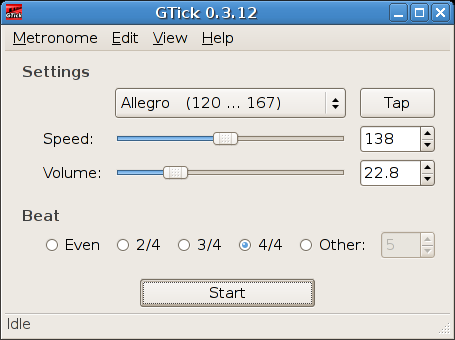
Other than Tuxguitar, I'd like to introduce another useful software Gtick. This is not only for guitarist.
http://www.antcom.de/gtick/

Gtick supports different meters (Even, 2/4, 3/4, 4/4 and more) and speeds ranging from 10 to 1000 bpm. It's really useful for beginner musicians.


Mar 27, 2009

Install Ubuntu 9.04 (Jaunty Jackalope) Beta in your virtual machine

Well, Ubuntu 9.04 beta is out. But as a Linux newbie, I don't really want to install it directly in my computer -- it's still a beta version. So a good idea to experience while it's still hot is to install it in a virtual machine. Here's a step by step guide:

Install Virtualbox

A complete community document could be found at:
https://help.ubuntu.com/community/VirtualBox


OK, let's get started. Run the following command:

sudo apt-get install virtualbox-ose
sudo apt-get install virtualbox-ose-modules-`uname -r`
sudo adduser $USER vboxusers
sudo apt-get install util-linux


The document mentioned something about module problem for kernel version 2.6.24-22 or higher, which is no longer a concern.

Then logout and relogin.

Install Ubuntu 9.04 in Virtualbox

If you have a multi-core CPU, start virtualbox this way. In your terminal:

taskset -c 1 virtualbox


This will force virtual box to use only one core.

In the virtualbox, click "New", then name your virtual machine. In the OS type menu, select "Linux 2.6".

Then you need to assign memory to your virtual machine. I give it 512M out of my 2G memory. And I selected dynamic size virtual hard drive. This is pretty much it. Other things are quite straight forward.

Before you start your virtual machine, in "CD/DVD mount" section on the right, mount the Ubuntu 9.04 iso, which can be downloaded here.

Then press start, and enjoy!

Mar 26, 2009

Ubuntu 9.04 is out today!

Although it's not out yet...Check out their website later today.

Link.

Feb 28, 2009

Be a registered Linux user and Ubuntu user!

Did you notice the "Registered Linux user 485011" pic on the right? What are your waiting for? Register your machine NOW!

http://counter.li.org/

Also, register as a Ubuntu user if you are using Ubuntu here, and get a cool tag:

http://ubuntucounter.geekosophical.net/

Feb 8, 2009

Road to Linux 2009

Once upon a time, I installed Ubuntu-I-forgot-the-version on my PC in college, with dual boot of course. It was interesting, although Linux desktop wasn't as good as it is now. That Linux installation ended up ... system crash.

The laptop I am using now was bought in Oct 2008. Lenovo Thinkpad T61, T9300, 2G, 100G. I choose Windows Vista Business when I bought it - pretty expensive. Then I got sick of Windows, and thought, gee, why not install an Ubuntu on it. There started my road to Linux, the only OS on my laptop now.

Long story short, here is the time table.

Dec 2008, I installed Ubuntu 8.04 LTS on my girlfriend's old laptop Thinkpad R51, through wubi installation.

Jan 2009, I installed same distro on my T61, with dual boot, and everything worked great.

Jan 2009, Bye Windows. My T61 is powered by Ubuntu, only.

Installing Ubuntu was pretty easy, and there are tons of threads of discussion on Ubuntu on internet. I burned the 8.04LTS to cd, and took 20ish minutes to get it done. The only thing needs to be pointed out is that I didn't use the default partition option. My partition is / 20G, /swap 2G, and /home the rest of my 100G hard drive.


Welcome to Non-geek's
Linux Handbook!

or if you will, Linux Cookbook.

Read my READY-TO-USE
RECIPE-LIKE
tutorials on Linux applications~

Subscribe if you are willing to follow.

If you find the post useful, please click the donate button on the upper right corner. Any amount is useful.