Showing posts with label crontab. Show all posts

Mar 30, 2009

Mail notification for Mutt (and Gmail, Thunderbird, and etc)

I've introduced basic configuration for Mutt in recent posts. But we still have a problem: how do I get notified when I have new mail?

Gmail users might also have similar problem. We certainly don't want to login to Gmail every 2 minutes. Of course gtalk can solve this problem. But what if one has several Gmail accounts, or even have Gmail AND Yahoo accounts? (If you don't use Mutt, you can directly go to the Mail Notification part)

First, we need to let fetchmail to download new mails every, say, 5 minutes. This could be done by setting up a crontab job. Edit the crontab list in your terminal:

crontab -e


Then add the following line.

*/5 * * * * fetchmail -v >/dev/null


"*/5" means fetchmail will run every 5 minutes, and the part after ">" means there won't be any output.

OK, now fetchmail will download your emails automatically.

Mail Notification

The extra software you need to install is Mail-Notification.

sudo apt-get install mail-notification


You can run it from System -> Preference -> Mail Notification. In the Mailbox list, you can add your Mutt's mbox type mailboxes. Remember to check "Auto start Mail Notification upon session opening". Now once there is new mail in your mailboxes, a notification will appear in the status area.
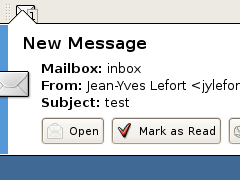


Note that "Mail Notification can monitor multiple mailboxes concurrently, and supports Evolution, Gmail, IMAP, Maildir, mbox, MH, Mozilla products (Mozilla, SeaMonkey, Thunderbird, …), POP3, Sylpheed, Windows Live Hotmail and Yahoo! Mail mailboxes." (Description and screenshot are from http://www.nongnu.org/mailnotify/)

So, if you are a Gmail user, you can also use Mail Notification to check if there's new mail in the server. This is really a handy software.


Feb 27, 2009

How to archive your emails once a while?

If you are using Mutt, your mailbox files would grow larger and larger until it takes several seconds to open it in Mutt. One would say: gee, why do you keep old emails? Well, why not? I believe there should be enough space to store the old emails in hard drive nowadays. So here's the question: how do we save old emails?

Here's what we need to do:
  1. Don't delete emails, archive them into a specific mailbox, say, "archive" when hitting in Mutt. (By default, it is "d")
  2. Archive this mailbox into .tar file, and organize them in your mail directory so you can read them when you need to
  3. Delete the old "archive" mailbox file, and create a new and empty "archive" mailbox file.
  4. Do 1~3 every ten days.
OK, let's get started.

1 Save emails

This is simply redefine the "d" key, by default the delete key, in Mutt. Write the following in your .muttrc

macro index,pager d 's=archive'

Now when you hit "d", the email is not deleted, but saved to the archive mailbox.

2 Archive emails and delete old mailbox file

Here I assume you are using mbox mailboxes. Since we need to do this every ten days, a good choice is to write a script and let the system run this script every ten days. Here's the script I wrote.

#!/bin/sh

#set archive directory
basedir=/home/usrname/mail/archive/
#define archive directory suffix
suffix=$(date +%Y%m%d)
#define archive directory name
desdir=$basedir$suffix
cd /home/usrname/mail/
#create archive directory
mkdir $desdir
tar czf $desdir/archive.tar.gz archive
#remove old mailbox
rm archive
#create a new archive mailbox
touch archive
echo Email archive-$suffix successfully created #echo a success message


Save the script in your home directory, and change the mode of the script by running

chmod 700 email-archive


Then try the script in your home directory.

./email-archive


3 Configure crontab


Cron is a unix, solaris utility that allows tasks to be automatically run in the background at regular intervals by the cron daemon. These tasks are often termed as cron jobs in unix, solaris. To set the script to run every ten days, run the following command to edit cron jobs.

crontab -e

By default, it will get you into a vim editor. If you don't know how to use vim, follow the instruction at the end of this post.

In the editor, add the following line.

30 21 1,10,20 * * $HOME/email-archive


Run the following command to see if the cron job is correctly set.

crontab -l


Done!

Vim basics


When vim is started, you are not in the edit mode. Move cursor by hitting "j, k, h, l", and hit "i" at where you want to edit. You can see the INSERT not at the bottom. After done editing, hit ESC to quit edit mode. Then hit shift-z twice to save and quit.

Feb 11, 2009

How do I to disable the mail alert send by crontab?

Q. How do I to disable the mail alert send by crontab? When my job is executed and the jobs cannot run normally it will sent an email to root. Why do I receive e-mails to my root account from cron? How can I prevent this?

A. crontab command is use to maintain crontab files for individual users.

By default the output of a command or a script (if any produced), will be email to your local email account. To stop receiving email output from crontab you need to append following string:

Cron Job Prevent the sending of errors and output

To prevent the sending of errors and output, add any one of the following at the end of the line for each cron job to redirect output to /dev/null.
>/dev/null 2>&1.
OR
&> /dev/null

Welcome to Non-geek's
Linux Handbook!

or if you will, Linux Cookbook.

Read my READY-TO-USE
RECIPE-LIKE
tutorials on Linux applications~

Subscribe if you are willing to follow.

If you find the post useful, please click the donate button on the upper right corner. Any amount is useful.